 i486
Soundcard · 2018
PCMIDI MPU
Works
Details
| Year | 2018 |
| Model | PCMIDI |
| Interface | ISA 8Bit |
| Fm synth | no |
| Yamaha OPL | no |
| PnP | no |
| Links | pcmidi.eu (external) |
Units
| Unit | Works | State |
|---|---|---|
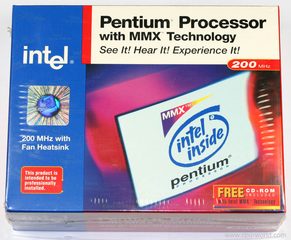
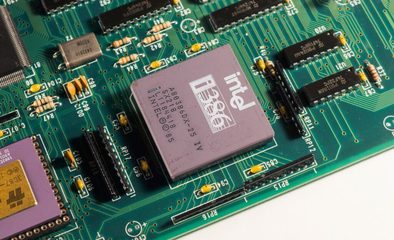
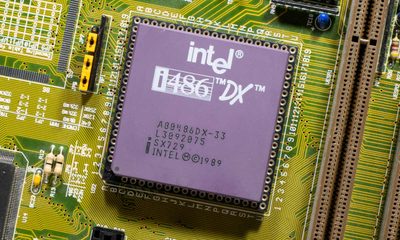
| PCMIDI MPU(1) | Works | i486 |
| PCMIDI MPU(2) | Works | Pentium MMX |
| PCMIDI MPU(3) | Works | i386 |
Notes
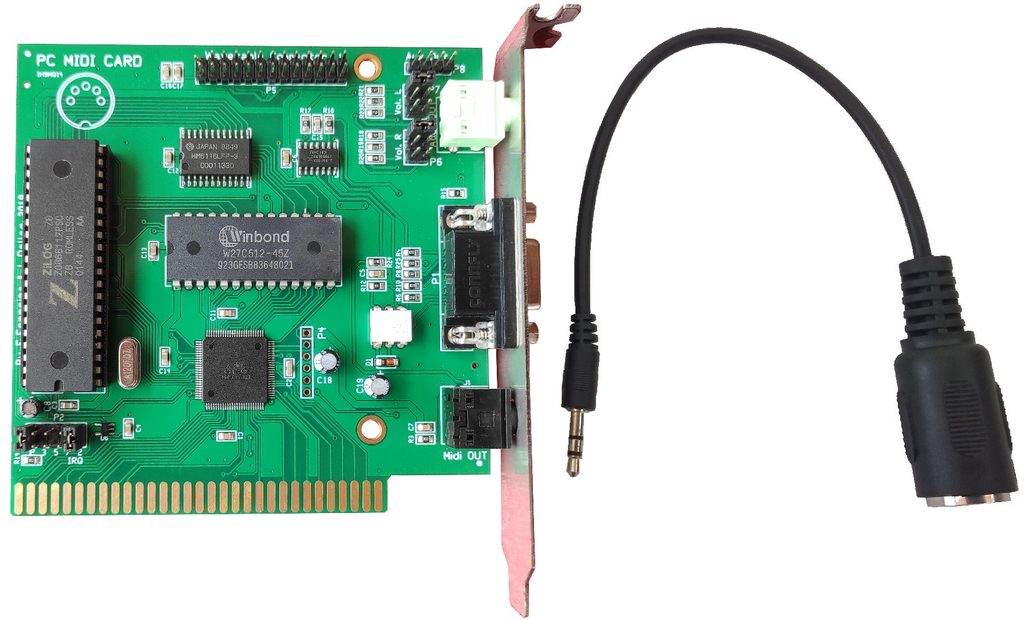
PCMIDI is an ISA 8-bit Midi Interface that is fully compatible with the Roland MPU-401 standard so it offers both "Intelligent" and "UART" modes of operation. It is the perfect companion for your retro-PC in order to enjoy MT-32 games without having to worry about incompatibilities or drivers or TSR layers.
Allows to connect midi devices to XT-AT class computers without having to worry about compatibility or extra drivers/setup.
Wavetable daughterboards and external units can be used at the same time without issues.
Please check Phil's Computer Labs in-depth review of the card
(older hardware revision but core chipset and firmware are the same)
Settings
All Roland MPU-401 MIDI cards are shipped with IRQ 2/9 and Port Address 330H. So for game compatibility keep those settings whenever possible.
SB 16/AWE32/64 with dedicated PCMIDI MPU-401 under Win9x
You need a Sound Blaster 16 – ideally a later model with reduced noise and interference. Look for a card with an “MPUEN” or “MFBEN” jumper to fully disable the MPU-401 interface. If your card doesn’t have this jumper, the “MSEL” jumper might help. And you also need a PCMIDI or other MPU-401-compatible card.
Installation & Setup
First, disable the MPU-401 interface on your Sound Blaster 16 by removing the “MPUEN” or “MFBEN” jumper or placing it on a single pin.
Next, configure the PCMIDI card to Port 330 and IRQ 2 – this is the default setting. Or when using with a AWE32/64 you can configure it to port 300, to not cause conflicts with the AWE MIDI.
Free up IRQ 2
On an AT-class PC, IRQ 2 and IRQ 9 are the same line — the slave PIC cascades into IRQ 2, so an ISA card jumpered to "IRQ 2" actually asserts IRQ 9. So freeing "IRQ 2" means freeing IRQ 9.
Now check your BIOS. IRQ 2 is often used by power management features on Pentium and newer systems. Disable “ACPI,” “Plug and Play OS,” or “Power Management” to free up IRQ 2. If these options aren’t available, the board likely doesn’t use ACPI and IRQ 2 is already free.
1. Stop the chipset's power-management SCI from using it
Power Management Setup→ setACPI FunctiontoDisabled. The mainboards SCI (ACPI event interrupt) is what claims IRQ 9; with ACPI off the board uses APM/SMI instead, which consumes no IRQ.- If there's an
IRQ 9 Break Suspend/Wake Up Ontype option, disable it too.
2. Reserve the line for the ISA card
PnP/PCI Configuration→ setResources Controlled BytoManual, thenIRQ-9 assigned to→Legacy ISA. This keeps the PCI PnP allocator from handing IRQ 9 to a PCI slot.- Set
PNP OS InstalledtoNoso the BIOS, not Windows, owns the assignment.
3. Free it from other on-board consumers
Integrated Peripherals→ disable theUSB Controllerif unused (USB commonly lands on a low IRQ).- Disable any unused COM2/LPT if the shuffle pushes something onto 9.
4. Fix the OS side
- Windows 9x installed with the ACPI HAL will hold IRQ 9 as "ACPI IRQ Holder for PCI IRQ Steering." After disabling ACPI in BIOS, remove the ACPI/PCI-steering entries in Device Manager and let it re-detect, or reinstall with
setup /p j(forces non-ACPI). Check Device Manager → Computer → Properties → IRQ list to confirm 09 is clear. - On DOS, just verify with a tool like
MSD(Microsoft Diagnostics, MS-DOS 6),HWiNFOorAIDA16.
Windows Driver Installation
Since PCMIDI isn’t Plug and Play, Windows won’t detect it automatically. You’ll need to manually install the driver. I recommend the “MPU-401 Multi-client driver”. In Windows 9x, go to Control Panel → Hardware → “No, select hardware from list”. Now select “Audio, Video and Game Controllers” → “Have Disk.” Point to the extracted driver folder and install. If you get a file not found error, reselect the folder.
After installation, choose Port 330 and IRQ 2/9. Restart your PC. Back in Windows 9x, go to Control Panel → Multimedia and switch to the MIDI tab. Here you change the “Single instrument” entry to “Roland MPU-401”.
You should now be able hear MIDI playback. For testing, try playing canyon.mid from `C:\WINDOWS\Media using Windows Media Player. If everything works, you can enjoy General MIDI in games via Port 330. If you have a SET BLASTER line in your autoexec.bat, remove the “P330” reference.
TL;DR
- Disable Sound Blaster 16’s MPU-401 via jumper
- Configure PCMIDI to Port 330 / IRQ 2, install daughterboard
- Disable ACPI / Plug and Play OS / Power Management in BIOS
- Install driver and disable Sound Blaster 16 MIDI in Windows
- Connect PCMIDI output to Sound Blaster 16 Line-In
- Install MPU-401 driver in Windows 98 SE, assign Port/IRQ
Troubleshooting
Normally there is not much to get a PCMIDI working, you just need to give it a free Address and IRQ to use - preferably port 330 and IRQ 2 as these are the "Roland" settings most of the games that don't allow configuration expect.
You can easily verify operation by running a game or the MQDIAG program from the "Original PCMIDI utilities" archive.
The most common issues for a PCMIDI not working are:
- Main soundcard still trying to use port 330 for it's onboard mpu
- IRQ2 is not truly free
- Connectivity errors
Port 330 address issue
For address issues you just have to make sure that the main soundcard MPU is either disabled or moved to another port like 300.
Use CTCM and CTCU (PnP Configuration Utility)
Use CTCU to configure the MPU-401 port under a configuration slot. You cannot modify Config 0 (this is locked as the default), so select Config 1 (or another numbered config).
- Change I/O address from 330h -> 300h.
- Test (button in the utility) to confirm no conflicts.
There is a patched CTCM/CTCU to remove Windows detection; https://www.vogons.org/viewtopic.php?t=34151
AUTOEXEC.BAT settings
SET CTCM=C:\MSDOS\SB16 // location where CTPNP.CFG is
C:\SB16\CTCM.EXE /T // configures card and sets BLASTER. (*)
(*) /T
- skips DOS version check
- always load CTCM with the configuration in CTPNP.CFG instead of having the card decide and then update CTPNP.CFG
IRQ2 issues
IRQ2 issues are a little more complex. For example ACPI that is present in Pentium1 and above systems is hardwired to use IRQ2 so please check your BIOS settings to see if there is an option to disable ACPI or revert back to using APM.
Some systems just won't let you use IRQ2 at all - it's a chipset thing and also depends on the way the motherboard is wired. This is mostly happening on later 486 boards that have PCI slots. If there is no way to free up IRQ2 then using another one like 3 is the only option.
XT systems and 98% of 286/386/older 486 boards are not affected and will easily accept port330 and IRQ2 as PCMIDI resources.
Connectivity issues
Connectivity issues are the easiest to solve: just remember that the PCMIDI OUT port should connect to the midi module's IN port.
Features
- Fully Roland "Intelligent Mode" compatible , no drivers needed - full hardware solution with 100% game compatibility
- Fully UART mode compatible
- Wavetable header for midi daughterboards , 100% bug-free
- External MIDI connectivity: 3xOUT ports, 1xIN port - each card is sold with a 1xOUT cable
- Schematic to make a DB9 cable with the rest of the optional extra ports are provided in the software package
- Volume attenuation jumpers for loud daughterboards like the XR385
- Internal wavetable audio-out header
- Under Windows the card works with the embedded "Roland MPU-401 Interface" drivers
Downloads
| PDFPCMIDI Quick Setup Guide IH9MQ14 Jumpers and Pinouts.pdf | PDF · 183 KB |
| ZIPWindows 9x/ME MPU-401 Multi-client drivers MPU_multiport-drivers_win9x.zip | ZIP · 17 KB |
| ZIPPCMIDI MPU-401 Windows 2000 driver MPU_w2k.zip | ZIP · 5 KB |
| ZIPRoland MPU-401 driver for Windows 3.1 & Windows 9x MPU-3x9x.zip | ZIP · 6 KB |
| ZIPPCMIDI utilities disk image and files MQ-drv.zip | ZIP · 233 KB |
| PDFOriginal PCMIDI manual MQ-manual.pdf | PDF · 2.6 MB |
| ZIPPCMIDI Windows 3.1x / Win9x driver v1.02 - multi-client driver PCMIDI31.zip | ZIP · 11 KB |
Used in